
Support
Portable Monitor Setup Guide
Everything from the box to a working second screen: Windows touch calibration, Mac refresh rate, Android and Samsung DeX, and what to do when the screen flickers or says "No signal".
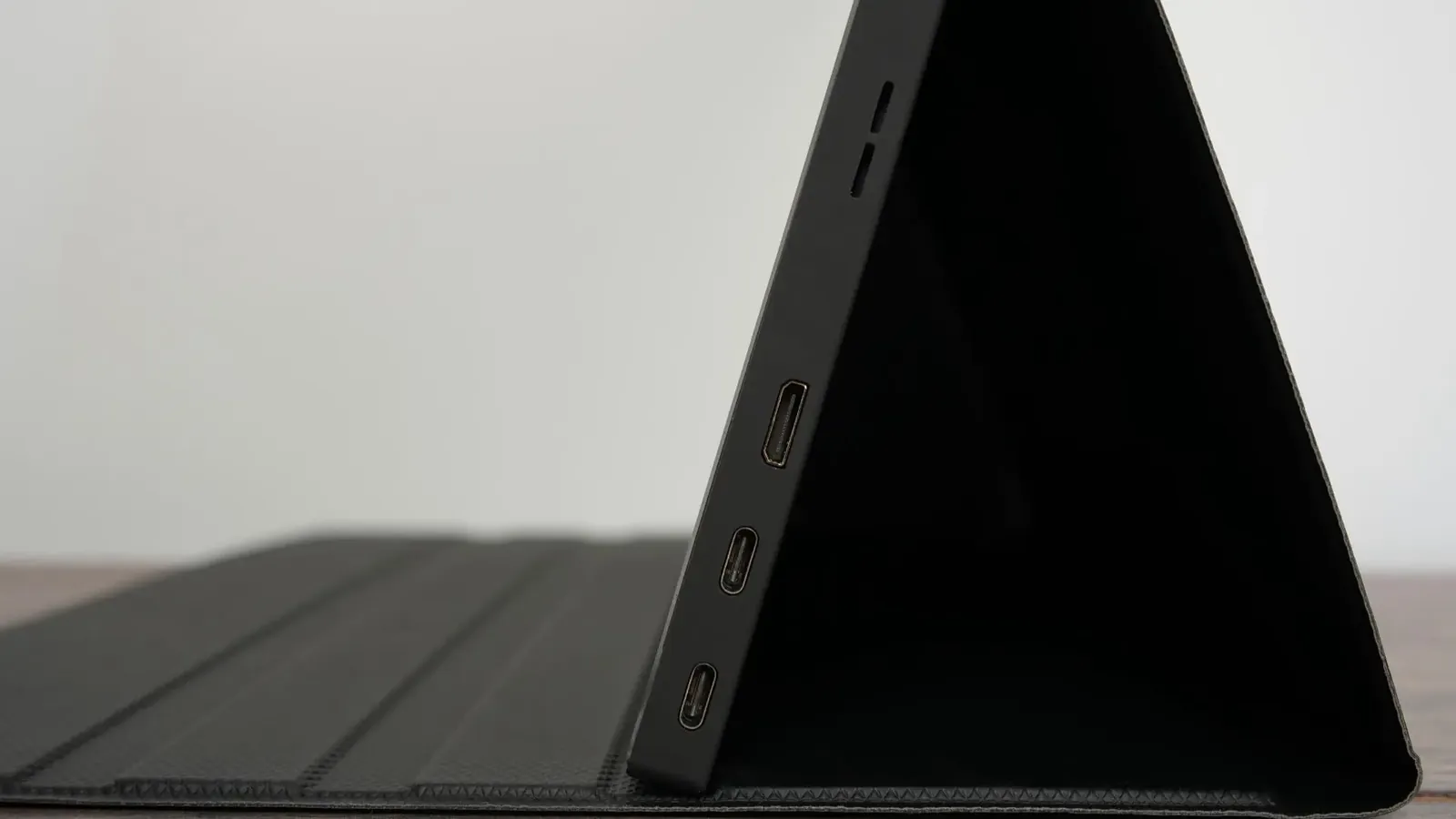
1. Which cables to use
| Your device | Cables | Result |
|---|---|---|
| Laptop or phone with USB-C video output | USB-C to USB-C | Video, power and touch on one cable |
| Laptop or PC with HDMI and USB-A | HDMI + USB-A to USB-C | Video over HDMI, power and touch over USB |
| Console, camera, Raspberry Pi | HDMI + USB power (charger or the device's USB port) | Video only, no touch needed |
Order matters. Connect the USB (power) cable first, then HDMI. If the monitor already shows "No signal", unplug and replug the HDMI cable so the computer re-sends the video signal.
2. Windows 10 and 11: enable and calibrate touch
Windows recognises the display and the touch controller without drivers. On a laptop that already has its own touch screen, or when you use HDMI plus USB, Windows sometimes maps touch to the wrong screen. This one-time calibration fixes it.
- Connect the monitor (USB first, then HDMI, or a single USB-C cable). Optional: open Device Manager and check that a "HID-compliant touch screen" is listed under Human Interface Devices.
- Open Control Panel, type Tablet in the search box and click Tablet PC Settings.
- Under Display options, pick R15PMT01 from the Display dropdown and click Setup.
- All screens turn white with a message. Press Enter until the message is shown on the portable monitor, then tap the portable monitor once. Windows now knows which screen the touch belongs to.
- Test by dragging a finger across the screen: you should see the cursor follow and a trail in Paint or a browser.
Tablet PC Settings is missing from Control Panel
Some Windows editions hide it. Create a shortcut that opens it directly:
- Right-click the desktop and choose New, Shortcut.
- Paste this as the location, click Next, name it "Tablet PC Settings" and click Finish:
%windir%\explorer.exe shell:::{80F3F1D5-FECA-45F3-BC32-752C152E456E}Double-click the new shortcut and continue from step 3 above.
Touch moves the cursor on the laptop screen instead
That is exactly what the calibration above fixes. Run Tablet PC Settings, Setup, and tap the portable monitor when the white message appears on it.
3. macOS: resolution, refresh rate and Spaces
Connect the USB-C to USB-C cable (or HDMI plus the USB-A to USB-C cable for power). macOS adds the monitor automatically. Touch is not available on macOS.
- Resolution 1920 x 1080. Open System Settings, Displays, select the portable monitor and make sure the resolution is 1920 x 1080. Choose "Use as: Extended display", not Mirror.
- Refresh rate 60 Hz. macOS may choose 75 Hz, and the monitor then shows nothing. The refresh rate menu is hidden: hold the Option key while clicking Scaled to reveal all resolutions and refresh rates, then pick 60 Hz.
- Menu bar on one screen only. In System Settings, Desktop and Dock (Mission Control on older versions), turn off Displays have separate Spaces. Log out and back in for it to apply.
More Mac notes on the MacBook page.
4. Android phones and Samsung DeX
Phones with USB-C video output (DisplayPort Alt Mode) connect with the USB-C to USB-C cable. Samsung Galaxy S8 and later, Note 8 and later, Z Fold and Tab S start Samsung DeX; other phones mirror or extend the screen. Touch works back to the phone over the same cable.
If nothing happens when you connect, the phone does not output video over USB-C. Budget phones usually do not. In that case the phone can still charge the monitor but cannot show a picture on it.
For long sessions plug a charger into the monitor's second USB-C port so the phone battery is not drained.
5. The screen flickers, restarts or does not stay on
Flicker means the monitor is not getting enough power. It needs 5V 2A (10 W). Try these in order:
- Use a different USB port on the computer. Ports on the laptop body deliver more than ports on a hub or docking station.
- Use the short 1 m cables from the box. Long or thin cables drop too much voltage.
- Connect directly to the computer rather than through a USB hub. If you must use a hub, use a powered one.
- Plug a phone charger (10 W or more, 5V 2A) or a power bank into the monitor's second USB-C port. This is the most reliable fix, and it also works for consoles and cameras.
6. "No signal" and then "Power saving"
- "No signal" appears: good, the monitor has power. It is simply waiting for video.
- Then "Power saving": no video arrived on the HDMI or USB-C input, so it went to sleep. Connect the power cable first, then HDMI, or unplug and replug the HDMI cable to make the computer send video again.
- Using USB-C to USB-C and still no picture: the port is giving power but not video. That USB-C port has no DisplayPort Alt Mode. Use HDMI for video and keep USB-C for power.
- Mac shows black after connecting: refresh rate is 75 Hz. Set 60 Hz as described in the Mac section.
Still stuck? Call or WhatsApp +357 96 410869 (English, Greek or Russian) or bring the monitor and your device to our shop in Lakatamia.